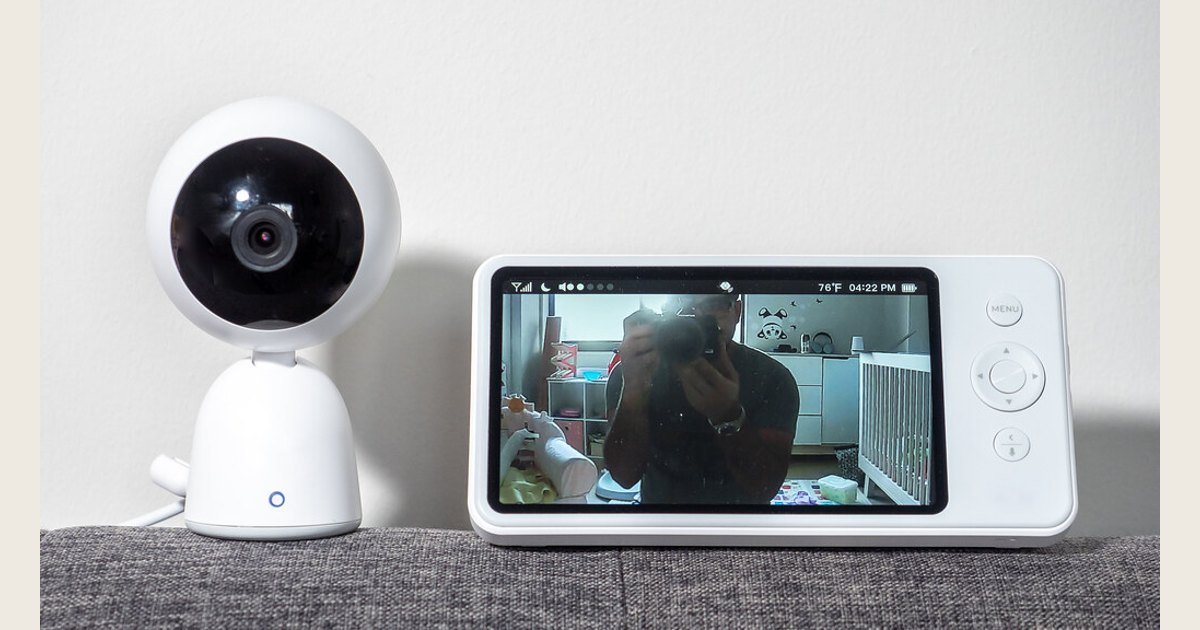
Useful baby monitor features are the ones that fit your routine: sound or video, a handheld unit or app, clear alerts, and dependable power. Compare the exact model’s manual, since features and behavior vary. For example, Infant Optics organizes manuals and troubleshooting by product, a reminder to match support instructions to the specific model—not to treat a feature label as a performance guarantee (manufacturer support page).
Key Takeaways
- Start with audio-only, a dedicated video screen, or an app-connected camera.
- Compare battery runtime by mode and component; check power needs for the monitor, camera, and network equipment separately.
- Test the controls, alerts, and connection where you plan to use them.
- A monitor supports caregiving; it does not replace supervision or safe-sleep practices.
Cover photo: “Baby Monitor” by ajay_suresh, Flickr, CC BY 2.0. Resized and padded. Illustrative stock photo; no product testing is implied.
Which type of baby monitor fits your routine?
Choose the connection and receiver setup first: this shapes available features and equipment dependencies.
| Monitor type | What you use | Useful to check | Main tradeoff |
|---|---|---|---|
| Audio monitor | Baby-unit microphone and receiver or parent unit | Sound clarity, volume control, sound-level lights, receiver battery | No visual view; simpler feature set may suit caregivers who mainly want to hear sounds |
| Video monitor with dedicated parent unit | Camera and a separate screen/receiver | Screen visibility, night view, camera angle and movement, multi-camera view, range, parent-unit battery | Lets you check the picture as well as sound; direct-link behavior and camera controls vary by model |
| Wi-Fi camera with app | Camera, home network, and a phone or tablet | Network requirements, account security, app alerts, remote access, subscription terms | Features may depend on Wi-Fi, internet access, phone settings, or a vendor service |
| Hybrid monitor | Dedicated receiver and optional app access | Which features work locally, which need Wi-Fi, and what happens when one path fails | More viewing choices can mean more setup and more dependencies to verify |
For video, consider the screen’s readability, night view, and camera framing. Remote pan-and-tilt, multiple camera views, and sound behavior with multiple cameras are model-specific; verify the controls and available choices in product documentation. If you plan to monitor more than one room, confirm which camera’s sound you will hear and how to switch views before you buy. Consider whether the screen and controls suit your space.
See our video baby monitor buying guide for screen and connection choices, and how baby monitors work for local versus networked systems. Check framing from the parent unit before fixing the camera position.
How should you compare battery life and charging?
Compare any stated runtime only after identifying which component and operating mode it describes; avoid treating differently described figures as like-for-like. Check the named mode, any stated conditions, and which unit the battery powers. Also look for screen-on and screen-off figures if the model offers both, especially if you expect to keep the screen off while listening. The exact manual should explain what the mode changes; don’t assume every monitor keeps the same functions active.
List the components your setup needs—monitor, camera, phone, and any network equipment—and check the power and charging instructions for each exact model. The Infant Optics support page lists distinct DXR-8 PRO and DXR-8 PRO SS manuals and battery-charging help by product; this is a useful reminder to match documentation to the model, not evidence of runtime or battery-replacement details. Our outage planning guide offers a way to map dependencies.
Before comparing models, look for:
- Battery location: parent unit, camera, both, or neither.
- Runtime mode: screen on, screen off, audio, or another named setting.
- Estimate conditions: settings, signal conditions, and stated qualifications.
- Charging: approved adapter, cable, and whether use while charging is allowed.
- Service: replacement options and warranty terms for that model.
What makes one runtime claim different from another?
When a manufacturer publishes estimates for different modes, compare the one closest to how you expect to use the monitor. Check the exact manual for each estimate’s conditions and which functions remain available in that mode; do not assume that a mode name means the same thing across brands.
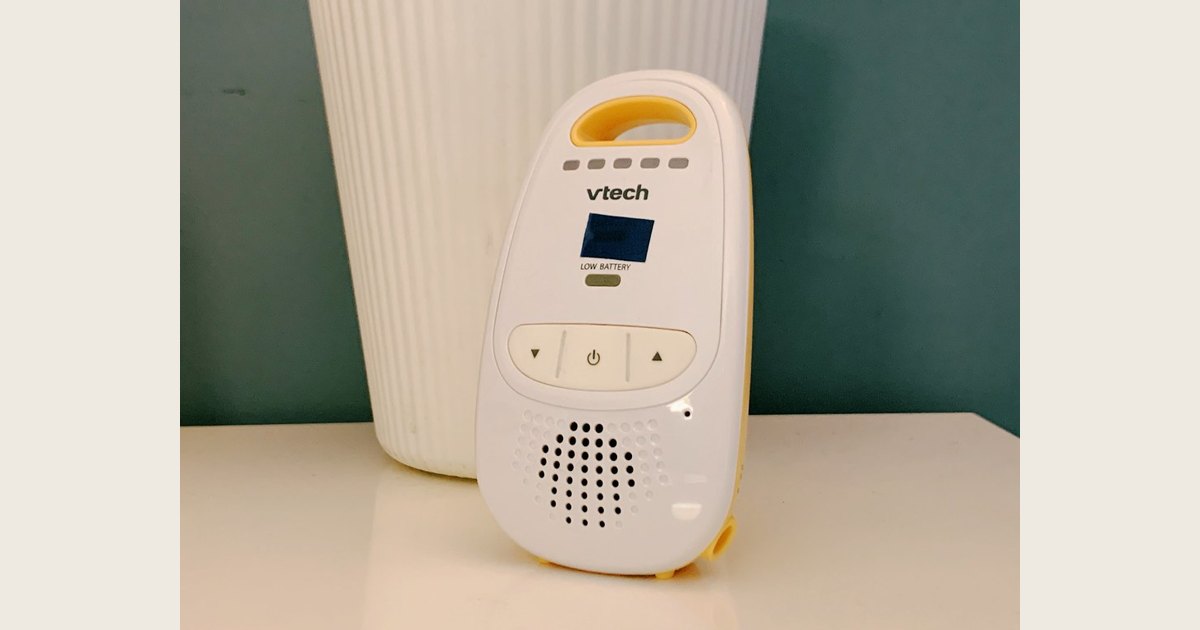
This older handheld shows a battery indicator; its display alone does not establish remaining runtime or current-model performance. Photo: “Baby Monitor” by bfishadow, Flickr, CC BY 2.0. Resized and padded; illustrative stock photo, not a product test.
Can you replace the battery?
Rechargeable does not necessarily mean user replaceable. Check the manual for approved batteries, replacement instructions, warranty, and charger; don’t open sealed equipment or substitute parts based on connector fit. If charge declines, check the approved cable, adapter, port, and troubleshooting steps before assuming the battery failed. If a battery is visibly damaged, stop using it and contact the manufacturer.
Which alerts and controls are worth having?
Prioritize clear everyday controls: adjustable volume, sound-level indicators, low-battery and lost-connection alerts. Features and labels vary by model, so check the manual.
Features to evaluate:
- Sound-level lights and sound activation/VOX: these labels can describe different behaviors from one model to another. Check the manual to learn what an indicator displays, what triggers sound activation, whether sensitivity adjusts, and what remains active during quiet periods. Do not assume a feature name alone explains what you will hear or see.
- Low-battery and connection warnings: learn what triggers each warning. Test from your usual location while another caregiver supervises.
- Two-way talk: a convenience for speaking through the parent unit or app, not a replacement for responding in person.
- Temperature reading or alert: check the stated use and sensor location. Treat it as a monitor feature, not a medical measurement.
- Lullabies, white noise, or night light: check controls and shutoff; keep equipment and cords away from the sleep space and the baby’s reach.
A feature list is not a reliability rating. Verify alert meanings in the manual and test controls at home with supervision maintained. For nighttime settings, see our sleeping guide.
What do range and connection features tell you?
Treat a listed range as a specification to compare, not a promise about every room in your home. Ask what the exact model’s signal-loss warning looks or sounds like, then test the view or sound where you plan to use it. As one model-specific example, Infant Optics lists signal loss, choppy video, Wi-Fi interference, and noise interference among its support topics for the DXR-8 line; these headings are prompts to consult that model’s instructions, not proof of a particular cause or remedy (manufacturer support page). For an app-connected monitor, check whether use depends on your network, internet service, phone, account, or app settings, and what the app displays if the feed is interrupted.
For a connected camera, review account security, software updates, video storage, and any subscription requirements. Our baby monitor safety guide covers privacy, placement, and cord precautions.
Do health-tracking features make a monitor safer?
Treat wellness readings and movement alerts as optional information, not as a replacement for safe sleep or medical advice. A monitor’s feature label does not establish that it can prevent a sleep-related death, diagnose a health problem, or reliably detect every concern.
The American Academy of Pediatrics says home cardiorespiratory monitors should not be used to reduce SIDS risk. It also says there is no evidence consumer wellness devices such as heart-rate or pulse-oximetry monitors decrease that risk; they are not substitutes for safe-sleep guidance (HealthyChildren.org, “How to Keep Your Sleeping Baby Safe: AAP Policy Explained,” updated September 11, 2026). Follow a clinician’s advice for medical monitoring. The AAP recommends placing babies on their backs on a firm, flat sleep surface, with no soft objects or loose bedding. A camera does not make an unsafe sleep setup safe.
A practical feature checklist before you buy
Compare actual models instead of counting features on the box.
- Choose the viewing method. Decide whether you want sound only, a dedicated screen, an app, or a hybrid setup.
- List must-have functions. Name two or three needs, such as screen-off audio, a second camera, adjustable alerts, or remote access.
- Read the exact manual and product page. Match the model number and hardware version. Look for battery modes, charge requirements, range conditions, alert meanings, subscriptions, and warranty terms.
- Check the whole system. Identify power and connection needs for camera, receiver, router, hub, phone, and any extra camera.
- Try the important features at home. With direct supervision maintained, confirm the view or sound, low-battery and signal warnings, and the controls you expect to use.
- Reassess placement and cords. Put equipment where the manufacturer directs and keep cords and devices out of the baby’s sleep space and reach.
A simpler monitor can fit better when its basics match your routine and its controls are clear. For other options, see our guide to alternatives to baby monitors.
Choose features you can verify
The best baby monitor features are not necessarily the most numerous. Choose features that suit your routine, confirm them in the exact model’s documentation, and test the controls and connection at home. Keep direct supervision and safe-sleep practices independent of monitor alerts.