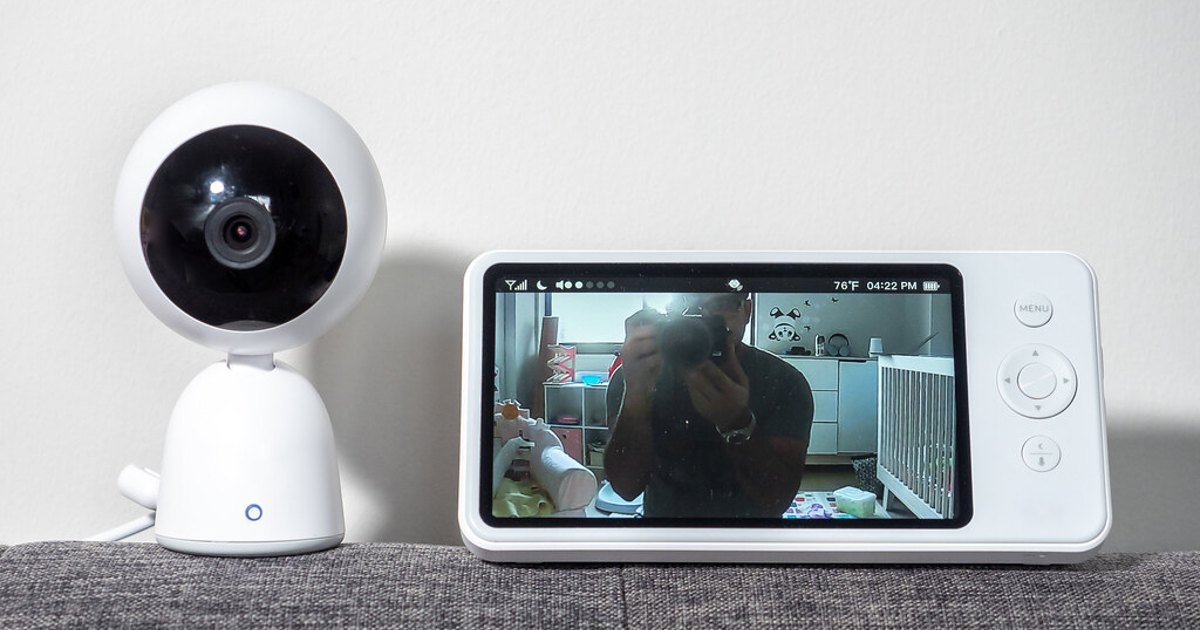
A safe baby monitor setup keeps monitor cords at least three feet from the crib, bassinet, or play yard (CPSC), power adapters out of reach, and the camera securely mounted on a room-side surface. The feed is an extra set of eyes, not a safe-sleep or medical device. For Wi-Fi models, change default credentials, use a unique account password, turn on two-factor authentication if offered, and keep the camera, app, and router updated.
Key Takeaways
- Keep monitor cords at least three feet from the baby’s sleep space (CPSC); keep adapters and slack out of reach.
- Secure the camera to a wall or other stable room-side surface using the manufacturer’s approved hardware. Do not rely on a crib attachment or a cord cover alone.
- A monitor cannot prevent SIDS or replace a firm, flat, empty sleep space and other safe-sleep practices.
- For Wi-Fi monitors, secure both the monitor account and home router. A strong camera password cannot compensate for an unsecured router.
Start with a cord-clear sleep space
The first baby monitor safety decision is where not to put it. Build the sleep area according to safe-sleep guidance first, then choose a viewpoint from outside that space. The American Academy of Pediatrics recommends a firm, flat sleep surface with only a fitted sheet, and says soft objects and loose bedding do not belong in an infant’s sleep area (AAP safe-sleep guidance). A camera, cable, power bank, or mounting accessory should not go in it either.
CPSC says monitor cords should stay at least three feet from a crib or infant sleep space (CPSC). Apply that three-foot, or 0.9-meter, buffer around cribs, bassinets, and play yards. Measure from the closest reachable edge, including any dangling cable.
Use this quick check before each setup or room rearrangement:
| Check | What safe looks like |
|---|---|
| Distance | Monitor cords stay at least three feet from the sleep space (CPSC); adapters and slack stay out of reach. |
| Reach | A child cannot grab the cord from the mattress, through crib slats, or while standing as they grow. |
| Route | The cable runs behind secured furniture or along the wall, never across the crib, over the rail, or under loose bedding. |
| Backup power | Battery packs and extension cords are outside the child’s reach and are not placed in or attached to the sleep space. |
| View | The lens can see the intended area without moving the camera or cable closer to the baby. |
Do not assume a cord cover makes an unsafe placement safe. Covers can help organize a cord on a wall, but they do not replace distance and a route a child cannot reach. Recheck the setup when you lower the mattress, move furniture, or your child starts pulling up. A cord that was well above a newborn can become reachable later.
Mount the camera to a stable room-side surface
A monitor should be secure enough that it cannot fall, shift, or bring its cable within reach. In most rooms, that means a wall mount, high shelf, or furniture placement outside the three-foot buffer. Follow the camera manufacturer’s mounting instructions, including any limits on wall material, screws, anchors, and the direction of the camera.
Before drilling or attaching adhesive, check the proposed view in the app or parent unit. Aim for a useful view of the sleep area, not a perfect close-up. If the camera needs to be within reach of the crib, change the location, angle, or lens setting instead.
A few mounting habits reduce avoidable problems:
- Do not attach a camera, power cord, or mount to the crib, bassinet, or play yard.
- Use the supplied hardware only when it suits the wall and camera. If it does not, use a mounting method the manufacturer approves for that surface.
- Pull gently on the completed mount while the child is elsewhere. The camera should not wobble, tilt, or loosen.
- Keep cable slack at the outlet end or behind secured furniture, never hanging near the sleep space.
- Inspect the mount and cord route after cleaning, moving furniture, or seeing a changed camera angle.
Stop using that location if the mount loosens, the camera repeatedly changes angle, or a cable cannot stay outside the buffer. Adding tape, string, or improvised fasteners can create a new problem. Remove the device and remount it safely according to its instructions.
Keep safe-sleep practices separate from monitoring
A video monitor can help you check on a child, but it does not make an unsafe sleep environment safe and it cannot prevent SIDS. The AAP says there is no evidence that home cardiorespiratory monitors reduce the risk of SIDS, and consumer monitoring devices should not substitute for safe-sleep guidance (AAP safe-sleep guidance). The same practical boundary applies to camera monitors: use the feed for observation, not as a reason to add bedding, positioners, or other items to the sleep space.
For infants, place the baby on their back for every sleep on a firm, flat, non-inclined surface. Keep soft objects, loose bedding, and products that attach to crib sides out of the sleep area. If a health professional has given your child individualized monitoring or sleep instructions, follow that plan rather than trying to configure a consumer camera around it.
A monitor has ordinary technical limits: Wi-Fi can drop, an app can log out, a battery can run down, and a camera can point in the wrong direction. Test its view, audio, charging, and alerts while an adult is awake, especially after a router change, power outage, app update, or room move.
Lock down the camera account before regular use
For a Wi-Fi camera, set up the account as carefully as the physical mount. First, replace any default device or app password. Give the monitor account a long, unique password that is not used for email, shopping, or another household account. CISA recommends a different strong password for every account and suggests a password manager to create and store them (Use Strong Passwords).
Next, turn on two-factor authentication, also called MFA, if the monitor app offers it. MFA adds a second verification step after the password, such as an authenticator-app code. CISA notes that someone who obtains a password still cannot sign in without satisfying that second step (Turn On MFA). Save recovery codes in a secure place and make sure any other authorized caregiver has an appropriate account rather than sharing your password.
Then review access deliberately:
- Check which phones, tablets, and web browsers are signed in to the monitor account.
- Remove old devices, former caregivers, and duplicate accounts you no longer recognize.
- Use invitation or separate-user features if the app provides them instead of sending one shared password by text or email.
- Check whether remote viewing is enabled. If you only use the monitor at home, consider whether you need that feature at all.
- Install camera firmware and app updates promptly. CISA recommends enabling automatic updates where available because updates can fix security flaws (Update Software).
If the camera supports only a single shared login, limit who has it and change the password when household access changes. A low-tech monitor that does not connect to the internet does not need Wi-Fi or account security steps, but it still needs the same cord-clear placement and secure mount.
Secure the router that carries the video feed
Your router is part of the monitor setup. The FTC includes IP cameras among the devices that benefit from home Wi-Fi security and recommends WPA3 Personal, or WPA2 Personal when WPA3 is unavailable, to encrypt a home network (How To Secure Your Home Wi-Fi Network).
Use the router’s settings or provider instructions to complete these basics:
- Change the router administrator password and the Wi-Fi network password if either is still the default.
- Give the Wi-Fi network a unique name that does not identify your household or router model.
- Install router software updates, or confirm that the internet provider handles them automatically.
- Turn on the router firewall.
- Turn off remote management, WPS, and UPnP when you do not need them and the camera instructions do not require them. The FTC explains that these convenient features can weaken network security.
- Log out of the router’s administrator page when you finish changing settings.
Do not solve connection trouble by permanently returning to a default password or older Wi-Fi security. If the camera cannot connect after a router update, check the manufacturer’s supported Wi-Fi settings and support guidance. A separate guest or smart-device network can be useful in some homes, but test whether the parent app can still reach the camera locally before relying on it overnight.
Choose cloud or local storage based on your actual needs
Cloud recording can enable remote viewing, notifications, and offsite video history, but it usually needs internet access and a vendor account. Local storage keeps recordings in the home and may suit families who do not need remote access. Neither is automatically safer.
Before buying or enabling recording, use this compact checklist:
- Update support: How long will the maker provide camera and app security updates?
- Accounts: Does it offer MFA and separate user accounts instead of one shared login?
- Remote access: Can remote viewing be turned off when it is not needed?
- Privacy: Is video encrypted in transit and at rest, and who can access recordings?
- Retention: Can you set the retention period and delete recordings?
- Local-only use: Can the monitor work without cloud upload or internet access if that is your preference?
- Subscription: Which recording or alert features stop working without a paid plan?
Local storage avoids vendor uploads but can still be removed, damaged, or physically accessed. Cloud storage can offer recovery options but increases the importance of account security and provider practices.
You do not need to buy another monitor just to make the current setup safer if you can relocate the camera, secure the mount, update supported software, and lock down the account and router. Consider replacing an internet-connected camera when its maker no longer provides security updates and there is no documented secure local-only option, or when its cord and mounting design cannot be used safely in the room. A supported non-Wi-Fi monitor may be a simpler fit when you only need an in-home feed.
Fix safety issues without creating new ones
When the view is poor, do not pull the camera closer to the crib. Try a higher room-side mount, a different wall, or a wider field of view, then test it while awake. When the mount slips, stop using it rather than adding improvised ties or adhesives. When you change the Wi-Fi password or router, reconnect the camera using the product instructions and verify the feed before bedtime.
If a device is missing from the account list, audio behaves unexpectedly, or you cannot explain a camera setting change, treat it as an account-security issue until you can rule out normal causes. From a device you trust, change the monitor password, remove unfamiliar sessions or shared users, turn on MFA if available, apply updates, and contact the manufacturer for account support. If there is an immediate physical safety concern, disconnect the camera and use another safe way to check on your child until the setup is corrected.
The best baby monitor safety setup is intentionally boring: cords stay far from the sleep space, the mount stays put, safe-sleep practices come first, and only authorized accounts can see the feed. Recheck those basics as your child and nursery change.
Photo: Baby Monitor by ajay_suresh, CC BY 2.0. Resized and cropped. Illustrative stock photo; no product testing is implied.