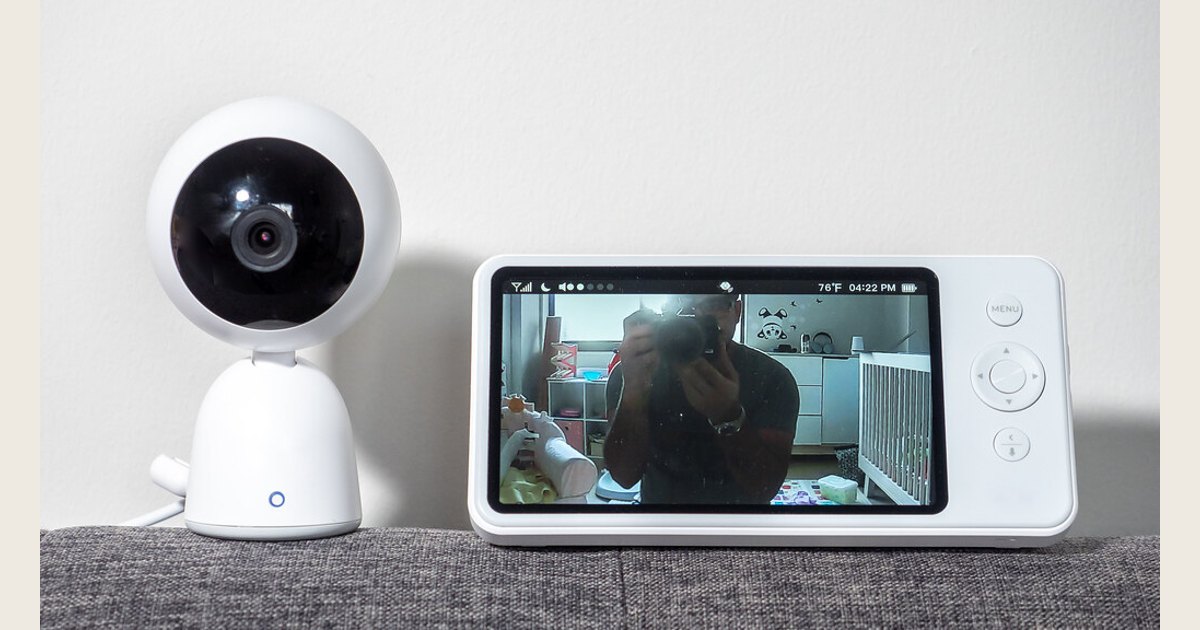
A baby monitor turns sounds—and, on video models, a camera view—from the nursery into information you can hear or see elsewhere in the home. The nursery unit captures that information, sends it wirelessly, and a parent unit or phone receives it. The important difference is how the signal travels: directly between two paired devices or through your home Wi-Fi network and an app.
That difference affects where you can use the monitor, what can interrupt it, and what needs securing. A monitor can be a useful awareness tool, but it does not replace safe-sleep practices or an adult’s care.
Quick answer: A nursery unit captures sound or video, then sends it to a dedicated parent unit or a phone app. A paired parent-unit monitor uses a local wireless link; a Wi-Fi monitor depends on your router, app, and often your internet connection. Test the setup in the places where you will actually use it.
Sources and scope: The safety, account-security, and bandwidth points below link to guidance from the American Academy of Pediatrics, CISA, and Google Nest. This is a general consumer guide, not a product test or a substitute for your monitor’s manual.
Featured-image credit: Photo: Baby Monitor by ajay_suresh, Flickr; CC BY 2.0. Resized and padded. Illustrative stock photo; no product testing is implied.
The basic signal path: nursery to you
Most monitors have three jobs:
- Capture. The nursery unit uses a microphone for sound, and a video model adds a camera. Depending on the product, it may also watch for movement or measure room conditions.
- Send. Electronics convert the audio or video into a wireless signal. Some monitors send that signal to a dedicated parent unit; others send it over Wi-Fi to an app.
- Receive and alert. The parent unit or app turns the signal back into sound and video. A monitor may light up, play sound, vibrate, or send a notification when it detects sound, motion, or a connection issue—if that feature is available and enabled.
Picture the path: a dedicated system is typically nursery unit → local wireless link → parent unit. A Wi-Fi system is typically nursery camera → home Wi-Fi/router → app on a phone or tablet. Knowing which path your monitor uses makes it easier to narrow down a connection problem.
The monitor is therefore a communication system, not a safety device that can prevent every problem. In particular, the American Academy of Pediatrics says consumer home cardiorespiratory monitors have not been shown to reduce the risk of SIDS and should not replace safe-sleep guidance. Babies should be placed on their backs for sleep on a firm, flat surface with a fitted sheet and no loose bedding or soft objects. Read the AAP’s safe-sleep guidance.
Two common ways baby monitors connect
The label “wireless” can describe very different setups. Start by identifying which of these your monitor uses.
| Monitor type | How the connection works | What it can be good for | What to plan for |
|---|---|---|---|
| Dedicated parent-unit monitor | The nursery camera or microphone sends a local radio signal to its paired screen or audio receiver. | A dedicated display and a simple local connection that does not rely on the home router. | The parent unit must stay within the usable signal area, and range changes with the house. |
| Wi-Fi monitor | The nursery camera joins the home Wi-Fi network. You view it with a phone, tablet, or sometimes a separate screen/app. | Checking the feed from compatible devices, potentially including away from home if the product supports remote access. | Router coverage, account security, internet service, app support, and available bandwidth may all matter. |
Some dedicated systems use technologies such as digital enhanced cordless telecommunications (DECT) or frequency-hopping spread spectrum (FHSS). Those terms describe methods of carrying a local radio signal; they are not features of every non-Wi-Fi monitor. Likewise, not every Wi-Fi model offers cloud recording, remote access, or the same alerts. The manual and product settings are the authority for your exact model.
An illustrative home monitoring setup; it is not a recommended placement or a product test. Photo: TV, books and baby monitor by dougbelshaw, Flickr; CC BY 2.0. Resized and padded. Illustrative stock photo; no product testing is implied.
What “range” really means at home
Range is the usable connection between the nursery unit and the receiver—not simply the largest number on a box. An advertised distance is usually a best-case figure rather than a promise that the same link will work through every wall and floor.
In a real home, the signal has to travel through or around materials and objects. Concrete, brick, metal, mirrors, plumbing, appliances, floors, and several interior walls can make a connection less reliable. Nearby wireless devices can also share or crowd the radio environment. A monitor that works at the kitchen table may have a weaker signal in a garage, on a patio, or at the far end of an upstairs room. If the feed cuts out only where you usually fold laundry, make coffee, or settle in for the evening, that pattern points to coverage in that spot—not necessarily a faulty monitor.
A practical test is more useful than guessing:
- Set up the nursery unit where it will actually stay.
- Carry the parent unit or phone to the places you expect to use it, including upstairs and outside your usual room.
- Listen for audio breakup, watch for video pauses, and check any out-of-range warning.
- Repeat the test at a time when other household devices are in normal use.
- Recheck after moving furniture, changing your router location, or adding a new wireless device.
For a Wi-Fi camera, signal strength is only one part of reliability. Many camera systems upload video over the home internet connection, and other activities—including video calls, streaming, and online gaming—can compete for available bandwidth. Google’s guidance for Nest cameras notes that the camera can adjust resolution and compression according to available bandwidth and that lowering a product’s quality or bandwidth setting can help with slowdowns when that option exists. Those details are model-specific, but the underlying lesson applies broadly: a clear Wi-Fi signal does not guarantee enough network capacity for a smooth live feed. See Google’s camera bandwidth guidance.
Wi-Fi convenience comes with account and network tasks
A Wi-Fi monitor can be convenient because your phone may already be with you. It can also involve more pieces: the camera, router, internet service, phone, app, and the account used to sign in. If a router restarts, the internet goes down, or the app loses permission to send alerts, viewing or notifications can change even if the nursery camera still has power.
Treat the monitor account and home network as part of the product setup:
- Create a long, unique password for the monitor account and for the Wi-Fi network. Do not reuse the password from email or another important account.
- Turn on multifactor authentication when the monitor service offers it.
- Install camera, app, router, and phone updates rather than indefinitely postponing them.
- Review who has access to the feed. Remove unused shared access and change credentials when needed.
- Understand whether remote viewing and recordings depend on a subscription or cloud service before relying on them.
These are not just camera-specific housekeeping steps. The Cybersecurity and Infrastructure Security Agency recommends strong passwords, multifactor authentication, and timely software updates as core ways to protect online accounts and connected devices. See CISA’s Secure Our World guidance.
A dedicated parent-unit monitor removes the home router and app account from the day-to-day viewing path. That can simplify use, but it does not eliminate checks: it still needs power, a charged receiver, a working local radio link, and a location within its usable range.
Safe placement and a dependable setup
Start with the sleep space, not the camera angle. Put your baby to sleep according to current safe-sleep guidance, then choose a monitor position that gives you a useful view or clear sound without putting equipment into the sleep area. Keep the unit, power cord, and any mounting hardware where the baby cannot reach them. Follow the manufacturer’s installation instructions rather than improvising a mount or routing a cable across the crib. For a focused placement checklist, see our guide to baby monitor safety.
Then make setup routine rather than one-and-done:
- Plug in or charge both units and confirm that the nursery unit has power.
- Pair a dedicated receiver, or connect a Wi-Fi model using the manufacturer’s app and instructions.
- Position the camera so it shows the sleep area without relying on digital zoom as a substitute for a clear view.
- Set a comfortable volume and test the microphone with ordinary nursery sounds. If using alerts, test each alert you intend to depend on.
- Verify the feed from the rooms where you will use it, not only while standing beside the nursery.
- Learn the low-battery and lost-connection indicators. Decide what you will do if you see one overnight.
The same principle helps when comparing a monitor and a general-purpose camera: decide whether you value a dedicated screen, local connection, portable parent unit, app access, or other features before shopping. Our baby monitor vs. security camera comparison can help frame that choice, and our guide to choosing the best baby monitor for your nursery can help you weigh the features that matter for your setup.
Quick troubleshooting when the feed is unreliable
The parent unit says it is disconnected
First, check power at both ends and confirm the receiver is not out of range. Move the receiver closer to the nursery, away from large appliances or dense walls, and wait for it to reconnect. If it repeatedly drops in the same place, use the monitor in a closer room or reconsider the monitor type for your layout.
Wi-Fi video pauses, looks blocky, or takes a long time to load
Check whether the phone and camera are on the expected network, then look for competing household internet use. If the product allows it, try a lower video-quality setting. Move the router or camera only after checking the installation and power-cord safety of the new location. If a problem began after changing a router name, password, or provider, the camera may need to be reconnected through its official setup process.
Alerts are missing or overwhelming
Confirm that app notifications are allowed on the phone, the monitor is online, and the chosen alert type is enabled. If normal household sounds constantly trigger sound alerts, adjust sensitivity only if the product provides that control. Test the result while you are awake; do not assume a setting works because it appears enabled in the app.
You can hear noise but cannot understand it
Reduce the parent-unit volume briefly, check the camera’s placement, and listen again from the usual sleeping area. Audio quality can change with distance, signal conditions, room echoes, and the microphone on a particular model. If clear audio matters more than video, an audio-first monitor or a different placement may be the more dependable choice.
Choosing between monitor types: the bottom line
Baby monitors work by carrying nursery audio or video to a receiver. Dedicated systems usually create a direct local link; Wi-Fi systems use your network and often an app. Neither design is automatically better. The right one is the model whose real-world coverage, power setup, privacy controls, and alert behavior you have tested in your own home.
Use the monitor to stay informed, not as a replacement for safe sleep, routine checks, or caregiver judgment. Test it where you live, keep its cables and hardware safely away from the sleep space, and revisit the connection after any change to your home network or nursery setup.