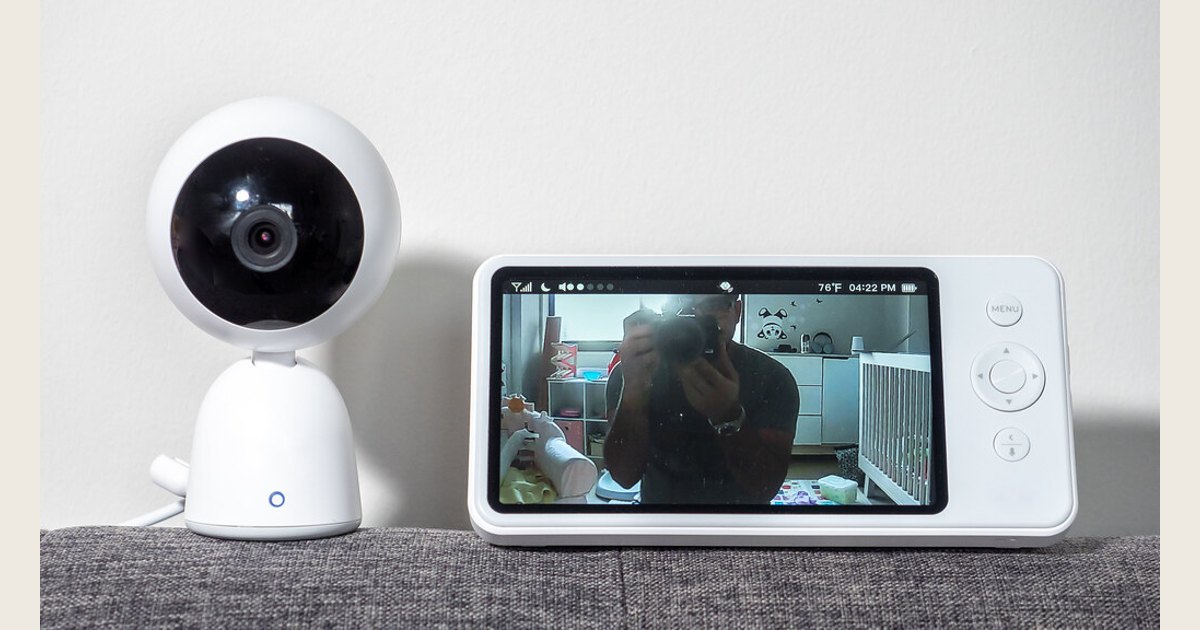
If you are comparing an Eufy baby monitor, start with the way you expect to check on your child: on a dedicated parent screen at home, in an app when away, or both. Eufy currently lists the C10 and E21, plus add-on cameras for each, and describes its lineup as hybrid monitoring that can blend in-home viewing with app connectivity. The right choice is not automatically the model with the longest feature list. It is the one whose viewing method, room coverage, camera expansion, and security requirements fit your household.
Key takeaways
- The C10 and E21 differ in resolution, pan, zoom, and which component has a battery. Compare the exact bundle before checkout.
- Decide whether local, in-home viewing, remote app access, or a hybrid setup matters most to you. More connectivity can be convenient, but it adds account and home-network responsibilities.
- Install every camera and its power cord well out of a child’s reach. A clear view is not worth a reachable cord.
- Secure Wi-Fi models with an updated router, WPA3 or WPA2 Personal encryption, and unique router credentials.
A baby-monitor camera and separate parent display, shown on a tabletop. Photo: Baby Monitor by ajay_suresh, https://www.flickr.com/photos/83136374@N05/51817515261; https://creativecommons.org/licenses/by/2.0/. Resized and padded. Illustrative stock photo, not an Eufy product or a placement instruction; no product testing is implied.
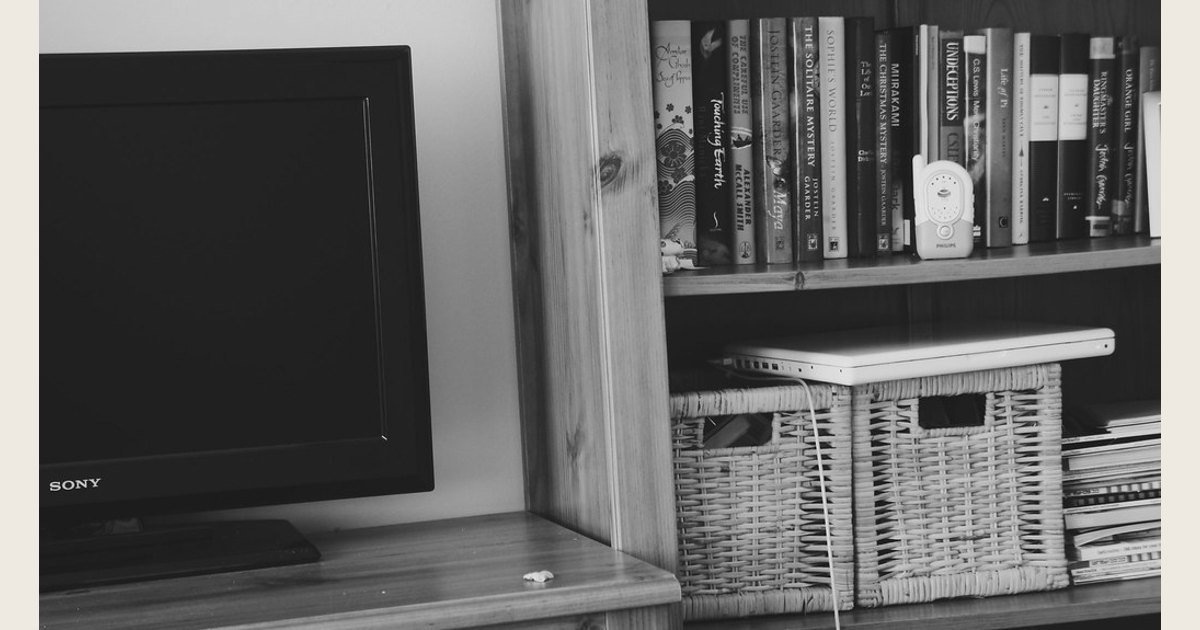
A loose cord can still be reachable even when a camera is elevated. Keep the monitor, power adapter, and every cord well away from the crib and beyond a child’s reach.
First, choose the way you want to monitor
A dedicated parent unit and a phone app solve different problems. A parent unit can be appealing when the monitor will mostly stay inside the home: it is a purpose-built screen, does not ask a caregiver to use a phone for every check, and may be preferable for households that want to minimize internet-connected nursery devices. Remote app access can be useful for a caregiver outside the house, but it means the device, account, and home network need thoughtful setup.
Eufy’s current baby-monitor collection describes hybrid connections that combine in-home monitoring with app connectivity. That description is a starting point, not a promise that every model works the same way. The C10 and E21 listings both describe parent-monitor viewing without Wi-Fi as well as app access when connected to Wi-Fi. Confirm how the exact bundle handles connection and included equipment before ordering.
For a broader framework, see this guide to how to choose the best baby monitor, including the practical difference between video, audio, range, and everyday usability.
Compare the Eufy C10 and E21
The current U.S. C10 listing and E21 listing show different model-specific tradeoffs:
| Feature | Baby Monitor C10 | Baby Monitor E21 |
|---|---|---|
| Video and view | 2K video, 351° pan, 60° tilt, and 4× zoom. | 4K video, 330° pan, 60° tilt, and 8× zoom. |
| Battery and power | The parent display has a 5,000 mAh battery, rated for up to 12 hours; the camera has no built-in battery and needs USB-C power. | The camera has a 5,000 mAh battery; Eufy estimates about 9 hours of use, or 5.5 hours with night vision. |
| Viewing and expansion | Local viewing without Wi-Fi, remote app viewing, and split-screen viewing for two babies. Eufy lists a separate C10 add-on camera. | Direct camera-to-monitor viewing without Wi-Fi, remote app viewing with Wi-Fi enabled, and split-screen viewing for two cameras. Eufy lists a separate E21 add-on camera. |
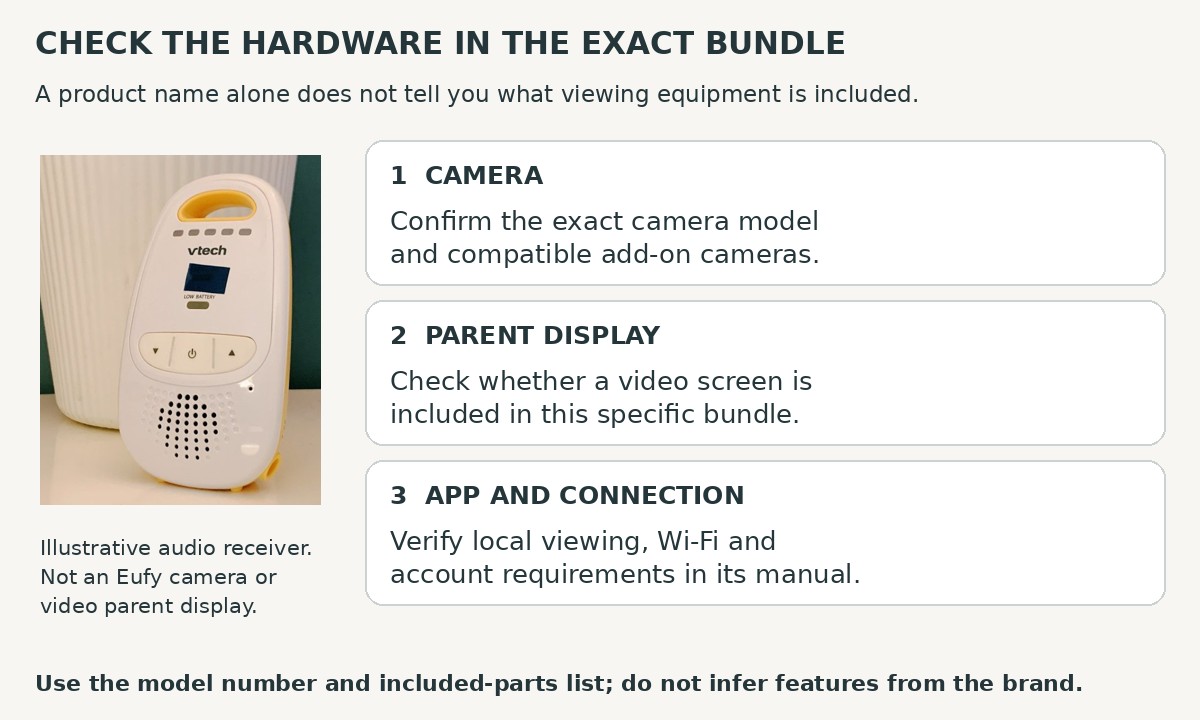
These are manufacturer-listed differences, not independent test results. The battery figures refer to different components, so they are not like-for-like runtime estimates. Confirm what the exact bundle includes and whether an add-on camera is sold separately on the listing and in the manual.
Which model may fit your needs?
- C10: Consider it if you prefer the higher listed pan range and want the parent display, rather than the camera, to have a battery. The camera itself needs USB-C power.
- E21: Consider it if you value higher listed resolution and zoom, or want a battery-powered camera for flexible placement. Eufy estimates about 9 hours of battery use, or 5.5 hours with night vision; these are manufacturer estimates, not guaranteed runtimes.
- Either model: Verify the bundle, room layout, screen, connection behavior, and add-on camera compatibility before ordering. A headline resolution or pan range does not guarantee good signal through your walls.
Features are not necessarily uniform across generations: Eufy’s collection also describes the older E110 with 720p video, a claimed 460–600-foot transmission range, pan/tilt, sound alerts, two-way audio, a 5-inch display, and night vision. Treat these as manufacturer specifications, not independent measurements, and do not apply them to C10 or E21. Verify any feature you care about on the exact product page and manual.
A monitor is not a substitute for safe sleep practices or direct caregiving. Treat it as one observation tool, not a device that guarantees safety, detects every issue, or replaces checking on your child in person.
Local viewing, cloud features, and privacy questions to ask
“Local” does not always mean the same thing. It might refer to a direct camera-to-parent-unit connection, on-device recording, a memory card, or simply a monitor that can be used without an internet connection. “Cloud” can refer to remote video delivery, account-based access, backup, or a paid recording plan. Do not infer any of those details from the brand name or a retailer’s short description.
Before buying, read the current product listing, the manual, and the privacy terms for the exact model. Write down the answers to this short checklist:
- Live viewing: Can you use the monitor locally without Wi-Fi? If so, which functions remain available?
- Remote viewing: Is app access optional, and what account is required to use it?
- Video storage: Is recording available? If yes, where is it stored, how long is it retained, and is a subscription involved?
- Access: Can more than one caregiver view the feed? Can access be revoked promptly if a phone is lost or a caregiver no longer needs it?
- Updates: How are firmware updates delivered, and does the manufacturer still support the product?
- Outages: What happens during a Wi-Fi outage, power outage, or app-service interruption?
This process helps you catch a mismatch before purchase: a remote-viewing feature may require an account or network connection you did not expect, while a control you want for local use may be app-only. If you are deciding between a purpose-built monitor and a general indoor camera, this comparison of a baby monitor vs. security camera can help identify the nursery-specific features you may value.
Set up the camera for safety before chasing the perfect angle
The safest setup begins with placement, not video quality. Keep the camera, its power supply, and every cord completely out of your child’s reach. Eufy’s collection FAQ recommends placing the monitor at least 6 feet (1.8 meters) from the crib or sleep area and suggests a high position, such as a wall corner near the ceiling or a high shelf. This is Eufy’s advice; also follow the exact model’s mounting instructions. Keep cords out of reach regardless of camera height.
Check the setup from your child’s future point of view, not only today’s. A baby who cannot reach a cord can become a standing, climbing toddler quickly. After mounting, pull back from the crib and look for draped cords, a reachable shelf, loose mounting hardware, or furniture that could be used to climb. Recheck after rearranging the nursery or lowering the mattress.
For a fuller room-by-room placement routine, follow this baby monitor safety guidance. It is especially helpful when a camera needs a higher angle to see a larger sleep space.
Secure a Wi-Fi Eufy baby monitor and the network around it
A non-Wi-Fi setup can reduce the exposure that comes with remote access, but no option removes the need for sensible physical setup and device care. If you choose a Wi-Fi-capable Eufy baby monitor, protect both the monitor account and the router it relies on.
The Federal Trade Commission recommends encrypting a home network with WPA3 Personal, or WPA2 Personal when WPA3 is unavailable. The FTC also advises changing a router’s default administrative username, password, and network name; keeping router software up to date; turning off remote management, WPS, and UPnP features when they are not needed; and setting up a separate guest network for visitors. These measures can make it harder for an unauthorized person or an insecure guest device to reach your primary network. FTC home-network guidance.
Use that guidance as a practical setup list:
- Give the Eufy account a unique, long password rather than reusing one from another service.
- Enable multifactor authentication if the account offers it.
- Update the monitor’s firmware and companion app when the manufacturer supplies updates.
- Change default router credentials and use WPA3 Personal or WPA2 Personal encryption.
- Review who has app access. Remove old devices and former caregivers, and reset credentials after a lost phone or a suspected compromise.
- Avoid sharing the primary Wi-Fi password broadly; use a guest network for visitors if your router supports one.
Eufy says unexpected voices or noises, camera movement, unusual LED activity, changed settings, or unexplained data-use spikes can be signs of unauthorized access. If something looks wrong, stop using remote access until you can investigate: disconnect the device from the network, change relevant passwords, review authorized devices, and follow Eufy’s current reset and support instructions. Eufy’s baby-monitor FAQ.
A five-minute pre-purchase and first-night checklist
Before you order, open the exact product page and answer the comparison questions above. Then, when the monitor arrives:
- Confirm the model number and included components match your order.
- Test picture, sound, alerts, parent-unit range, and night viewing in the rooms where you will actually use them.
- Mount the camera and route all cords before placing the child in the sleep space; check that everything remains unreachable.
- If using app access, update the router, app, and monitor, then use unique passwords and review sharing permissions.
- Simulate the ordinary failures: step outside normal range, turn off Wi-Fi if local viewing is important, and check what happens after a power interruption.
Before buying, make sure you can answer five questions: How will you view the monitor? What still works without Wi-Fi or power? Who can access the feed? Are all cords out of reach? Which model-specific feature justifies your choice? The answers matter more than an assumed winner.